

The AI Assistant is available on Enterprise Self-Host and needs an active license. Enterprise Cloud support is coming soon.
Set up the assistant
These steps are for admins, in the Admin Dashboard.Turn on the assistant
- Go to Settings and open the AI tab.
- Turn on Enable the AI assistant.
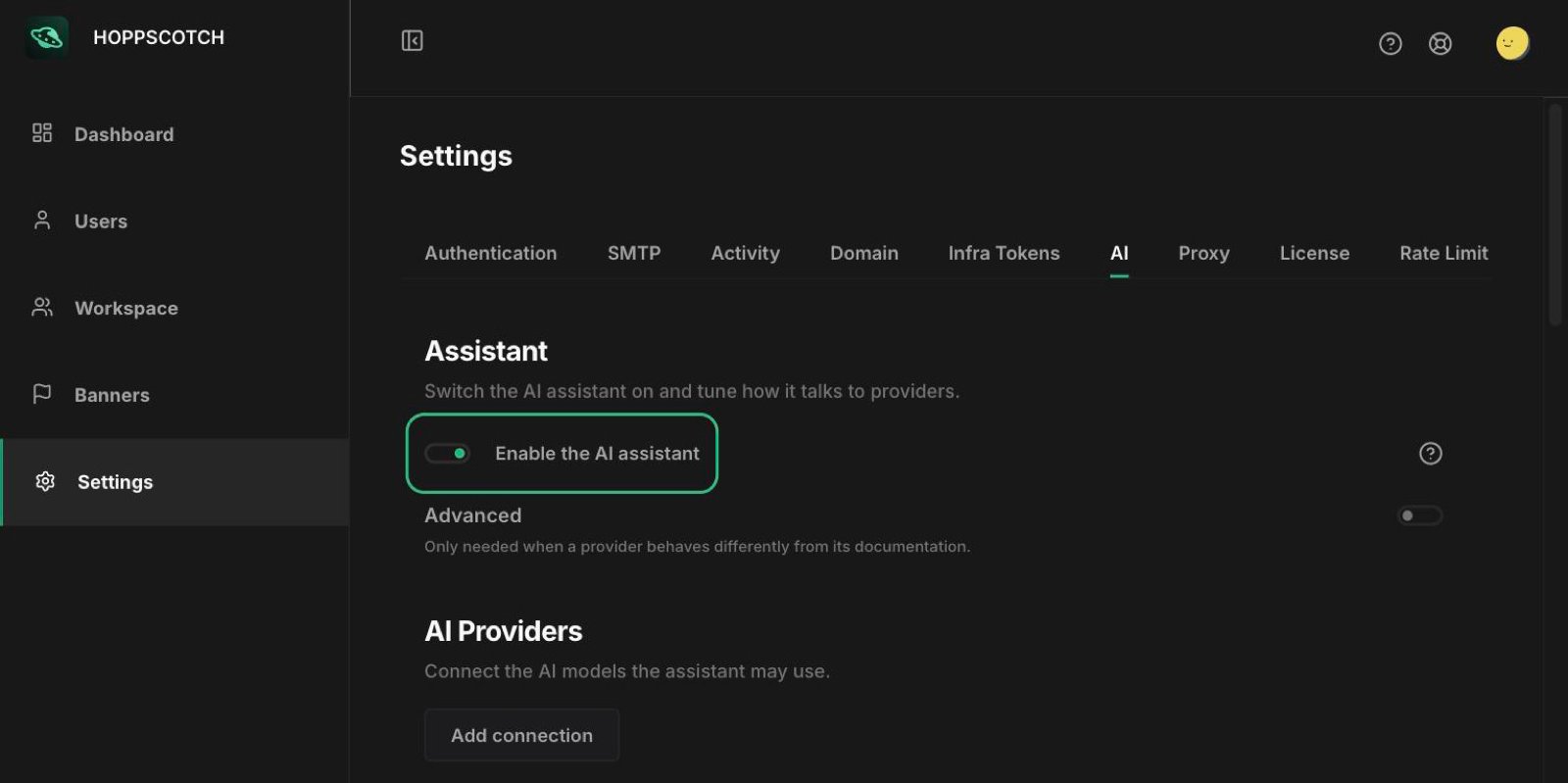
Connect an AI provider
- Under AI Providers, click Add connection.
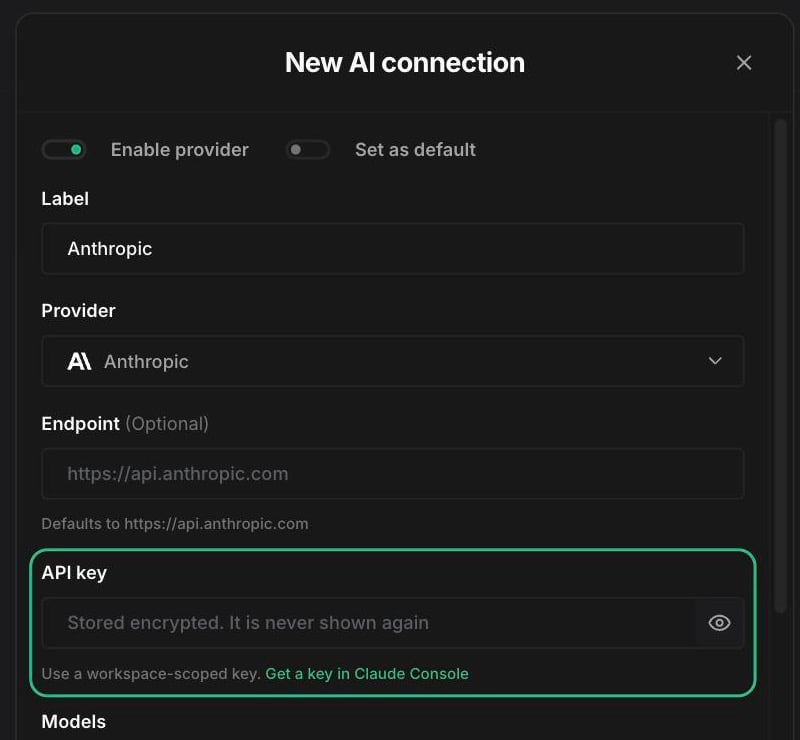
- Enter a Label to identify the connection.
- Pick a Provider: Anthropic, DeepSeek, Bedrock, OpenAI, Azure, Gemini, OpenAI-compatible, or Custom.
- Set the Endpoint. It’s optional for Anthropic, DeepSeek, OpenAI, and Gemini, which use the provider’s API by default. It’s required for Bedrock, Azure, OpenAI-compatible, and Custom, for example a local runtime such as Ollama (
http://localhost:11434/v1). - Enter the API key. It’s stored encrypted and never shown again. When you edit a connection later, leave the field blank to keep the stored key.
- Under Models, pick from the suggestions or type model IDs, separated by commas, then choose a Default model.
- Click Test connection to check that every model responds, then click Save.
Advanced settings
Open Advanced only when a provider behaves differently from its documentation. These settings apply to every connection.Add skills
Skills are named prompts that users pick from the / menu in the chat. The assistant comes with these built-in skills:
To add your own, click Add skill under Skills, then enter a Slug (users type
/slug), a Name, a one-line Description, and the Prompt to send. A custom skill with the same slug as a built-in replaces it.
Use the assistant
- Click AI Assistant in the bottom-right corner of the app.
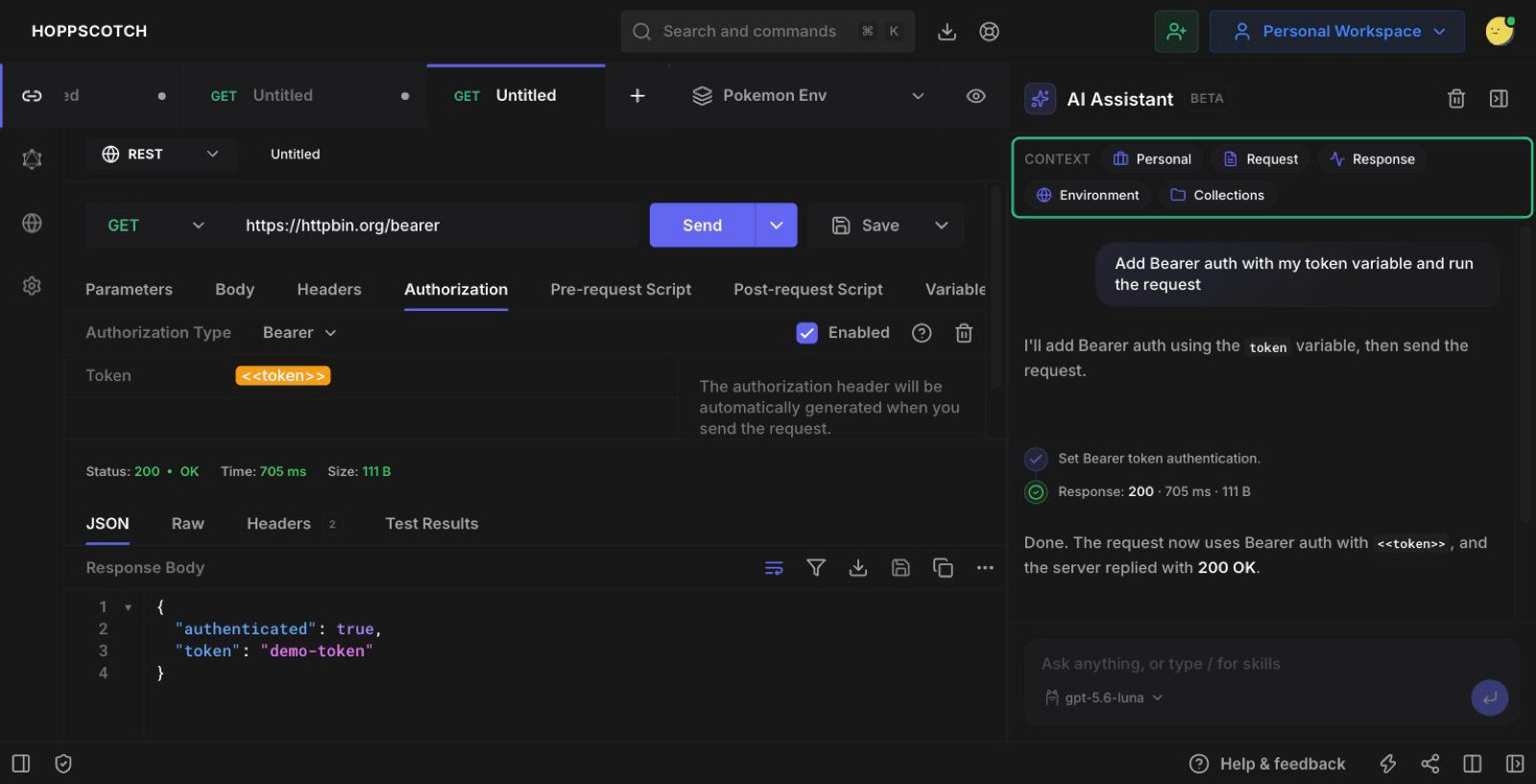
- Check the Context chips at the top. They show what the assistant can read, such as your request, response, environment, and collections. Click a chip to leave it out.
- Type what you want, pick a suggestion, or type / to choose a skill.
- Pick a different model from the menu below the message box if your admin connected more than one.
- Edit a request’s method, URL, headers, parameters, body, auth, scripts, and description.
- Run and save requests, and write tests for the response.
- Open, close, and switch tabs, and switch between REST and GraphQL.
- Create and select environments, and add or update variables.
- Switch workspaces, and create or rename team workspaces.
- Create collections and folders, add requests to them, rename or delete them, and run a collection.
- Publish API documentation and manage mock servers.
Users who don’t want the assistant can hide it in Settings > Experiments by turning off AI Experiments.
Confirmations
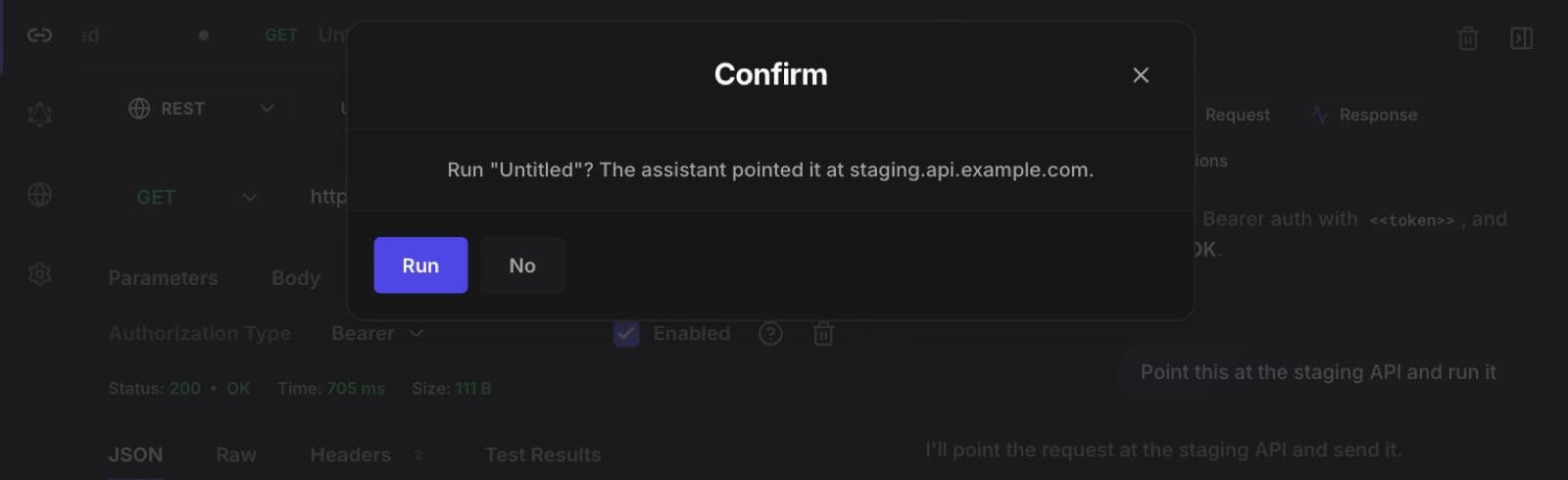
The assistant asks before it does something that sends data somewhere new or can’t be undone:- Running or saving a request that points at a host the assistant chose and you never typed, including hosts that a script it wrote sends to.
- Deleting a collection or a mock server.
- Publishing or unpublishing documentation.
- Making a mock server public.
Privacy and security
- API keys are stored encrypted and are never sent back to the browser.
- The assistant sees the names of your environment variables, not their values.
- Values that look like credentials, such as tokens, API keys, and passwords, are replaced with placeholders before anything is sent to the AI provider.
- The rest of the context, such as the request, the response, and collection names, is sent to the provider your admin connected.